WORLD LINK
Anything Find Here (A member Of SAMJON Mediacorp.)
Tuesday, August 21, 2012
Monday, August 20, 2012
Bring a Washed Out Effect to your Photos in Photoshop
In this tutorial, you shall see how you can add a drab oldies effect to any picture if you only learn how to smartly alter the picture’s color levels and its blend mode thus creating a washed out effect in Photoshop.
Image link
1. Open an image in Photoshop. Width 600 and Height 340.Learn to Intensify your Images in Photoshop
Often you take pictures with your digital camera and you look at them
and wonder what’s missing. The pictures just don’t look good enough.
The obvious solution is to buy a better camera, but in all honesty, even
pictures taken from the best of cameras require a little bit of
Photoshop touch at some stage. In this tutorial you are going to take a
seemingly ordinary picture and intensify its colors in Photoshop to give
it “that” feel. It’s almost going to be like you are bringing your
picture to life through Photoshop, and the best part is that it requires
very little hard work and technical Photoshop skills; just a few little
steps and you are done. Of course you need to make note that the same
exact steps are not going to produce the same effect for every image in
Photoshop, but with a little bit of alteration, you will be good to go.


Create a Trendy Retro Cityscape Design in Photoshop
Follow this step by step Photoshop tutorial to create a cool
cityscape poster design with the trendy retro style and effects that are
so popular at the moment. We’ll use a range of texture resources and
Photoshop techniques to give the design an aged and distressed
appearance and send it back in time a few decades.

The artwork we’ll be creating features a cityscape modified with cross processing colour effects and texture overlays to create the appearance of a retro poster or magazine ad left to age since the 70′s.

The artwork we’ll be creating features a cityscape modified with cross processing colour effects and texture overlays to create the appearance of a retro poster or magazine ad left to age since the 70′s.
Create Pulpy Orange Text in Photoshop
Okay so this tutorial starts with the basics; we first set up a
suitable background so that our pulpy orange text looks good on it, and
then we proceed to creating the pulpy orange text in Photoshop. Just
skip the first few steps if you are not interested in creating the
background. Most of the text will be created using Photoshop’s 3D
option; particularly Repousse. The actual point of this tutorial is not
creating the pulpy orange text in Photoshop, rather to teach ourselves
how we can manipulate Photoshop’s various tools to create a nice
backdrop and make the text look good; it’s really sort of an all-purpose
tutorial.


How to Create Your Own Fractal-Style Design Using Photoshop
Fractals in geometric terms, is a pattern or figure that can be split
into parts, each of which is (at least approximately) a reduced-size
copy of the whole. It is a concept called self-similarity and gives you
highly similar patterns even as you close in on its different parts. In
the end, the result is a beautiful pattern that looks totally organized
or symmetrical, yet fragmented and askew at the same time. That is why
some people actually want to use the same “style” of fractals for
creative pursuits in print and web design.
In this tutorial, you will learn how to create your own “fractal”-style design. Keep in mind that technically we are not creating a fractal; we are just copying the same aesthetic elements onto our design. Let us get started.
STEP 1
First, will we setup our document. In this tutorial, we will be using the preset values in Photoshop, but we will also set a high resolution so that you can also use this in print (if you need to). Once Adobe Photoshop is open, we just press CTRL+N to create a new document and then we alter the resolution setting. Compare your settings with the values below.

In this tutorial, you will learn how to create your own “fractal”-style design. Keep in mind that technically we are not creating a fractal; we are just copying the same aesthetic elements onto our design. Let us get started.
STEP 1
First, will we setup our document. In this tutorial, we will be using the preset values in Photoshop, but we will also set a high resolution so that you can also use this in print (if you need to). Once Adobe Photoshop is open, we just press CTRL+N to create a new document and then we alter the resolution setting. Compare your settings with the values below.
- Width: 1024 pixels
- Height: 768 pixels
- Resolution: 300ppi
- Color Mode: RGB (for web) or CMYK (for print), the choice is yours

Designing a Retro Flyer with Photoshop
Creating retro designs is pretty easy when you’re using Adobe Photoshop. Here, you will learn how to do this yourself based on a primary image. We will start with setting up a proper print-ready design then proceed to image processing and finish with the right design details for our flyer. Let’s get started.
STEP 1
Open Photoshop and create a new document (CTRL+N). Now, in the window that opens, you will need to setup the flyer dimensions. The values depend on the size and orientation of the flyer that you need. For this tutorial, we will be using these settings.
a. Width: 8.5 inches
b. Height: 5.5 inches
c. Resolution: 300ppi
d. Color Mode: CMYK

Creating retro designs is pretty easy when you’re using Adobe Photoshop. Here, you will learn how to do this yourself based on a primary image. We will start with setting up a proper print-ready design then proceed to image processing and finish with the right design details for our flyer. Let’s get started.
STEP 1
Open Photoshop and create a new document (CTRL+N). Now, in the window that opens, you will need to setup the flyer dimensions. The values depend on the size and orientation of the flyer that you need. For this tutorial, we will be using these settings.
a. Width: 8.5 inches
b. Height: 5.5 inches
c. Resolution: 300ppi
d. Color Mode: CMYK

Creating the CLOVERFIELD text effect in Photoshop
Note: This tutorial has been carried out in Adobe Photoshop CS5. Some functions may be different in older versions.
Final Result:

Final Result:

Creating the Heroes Poster Text in Photoshop
Note: This tutorial has been carried out in Adobe Photoshop CS5. Before you continue, make sure you are familiar with the Smudge Tool and other basic tools in Photoshop. Due to copyright reasons, I have changed the “H” in HEROES to “Z”.
Final Result:

Final Result:

Create a Flat Earth Waterfall in Photoshop – Tuts+ Premium Tutorial
From time-to-time, we like to feature the work of artists that we think are doing a fantastic job in their field. Recently,we introduced you to the work of Garrigosa Studio. One work in particular from their portfolio attracted quite a bit of attention from readers wanting to know if we could show them how to produce something similar.
Your feedback is important to us, so we decided to give it a shot.
In this reader-inspired Tuts+ Premium tutorial by author Ed Lopez, we will explain how to
create a flat Earth waterfall in Photoshop using a handful of stock images. This tutorial is available exclusively to Tuts+
Friday, August 10, 2012
Hong Kong Observatory organises training course on weather observation (6 August 2012)
The Hong Kong Observatory (HKO) will hold a weather observation training
course in October. Three experienced HKO weather observers will
introduce basic weather observation techniques and methods, such as
classification of clouds, to the participants. Members of the public are
invited to join.
The course aims to enhance participants' understanding of weather conditions. It is particularly useful for those engaging in outdoor activities to respond more intelligently to weather changes. The course will also cover proverbs relating to sky conditions and weather changes. As such wisdom is often region-specific, HKO weather observers will explain how they can be applied meaningfully. During the course, participants will also learn how to make effective use of weather information available at the HKO's website, and will be given opportunities to practise weather observation.
PolyU study raises alert for further increase in city's temperature
the temperature in the inner urban areas of Hong Kong is predicted to
rise by two to three Celsius degree in 30 years' time, according to the
latest scientific study by researchers at the Department of Land
Surveying and Geo-Informatics (LSGI) of The Hong Kong Polytechnic
University (PolyU).The study was done by PolyU Professor Janet Nichol and her research student Mr To Pui-hang, together with Chinese University's Professor Edward Ng Yan-yung, using remote sensing technology and satellite images. They have mapped the distribution of temperatures for both daytime and nighttime over Hong Kong at decadal intervals up to 2039, taking into consideration the temperature change due to greenhouse-induced warming as well as the impact of urbanization. The latter is known as the Urban Heat Island (UHI) effect.
Professor Janet Nichol said the UHI effect means an urban area is significantly warmer than its rural surroundings. The temperature difference is usually larger at night and in winter. There are several causes leading to UHI. These include high-rise buildings which block thermal radiation at night, materials with thermal bulk properties such as asphalt and concrete, and the lack of vegetation in urban areas. With its densely populated urban area, Hong Kong provides a typical example of the UHI effect.
HKFE Announces Revised Margins for Esprit Holdings Futures
Hong Kong Futures Exchange Limited (HKFE), a
wholly-owned subsidiary of Hong Kong Exchanges and Clearing Limited
(HKEx), has announced that with effect from the commencement of trading
on Monday, 13 August 2012, the minimum margins to be collected by an
Exchange Participant from its clients in respect of their dealings in
the following futures contract will be as outlined in the table below. The adjustments are based on the clearing company’s normal procedures and standard margining methodology.
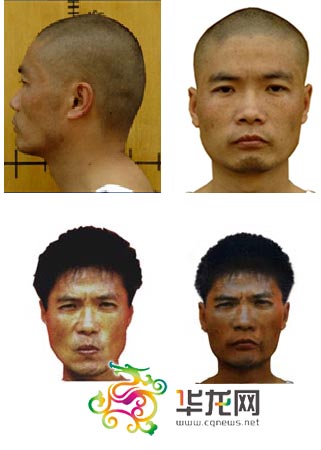
Gunman wanted in SW China
Police in Southwest China's Chongqing municipality have issued an arrest warrant for a robber who shot and killed one person and injured two others on Friday afternoon.
![]() |
|
A set of photos of Zhou Kehua, the suspect, provided by Chongqing police. [Photo/cq.cqnews.net] |
China
The People's Republic of China is a single-party state governed by the
Subscribe to:
Posts (Atom)